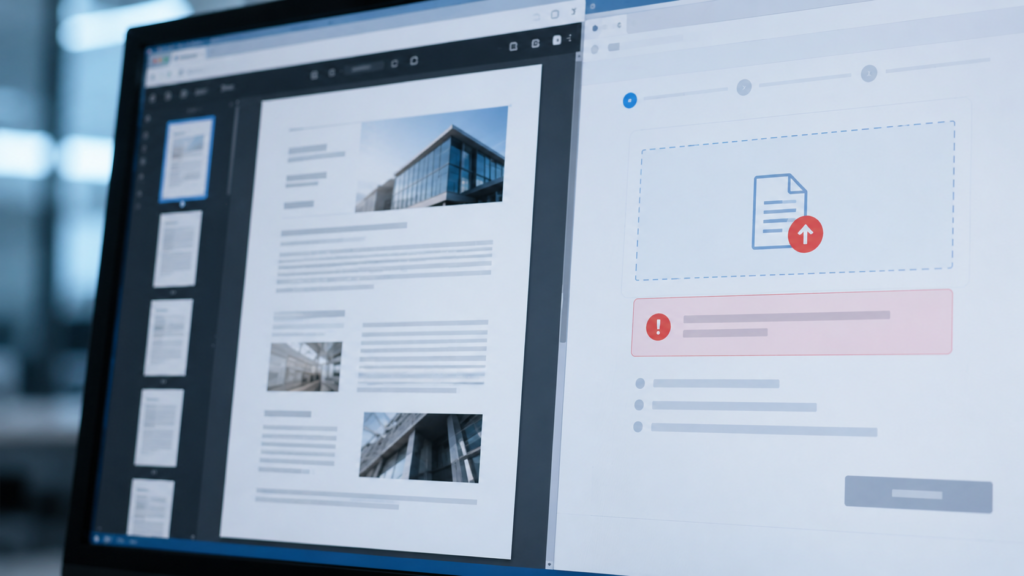
“It opens on my laptop” only proves that your PDF reader can open it.
A portal can apply completely different rules: maximum file size, filename rules, password restrictions, allowed PDF versions, page limits, form requirements or its own server-side validation. A normal-looking PDF can therefore fail before the portal ever displays a page.
FAILED
Check the rejection category before rebuilding the document.
File size
Portals often publish a hard maximum. A 10.2 MB PDF will still fail a 10 MB rule even if it looks perfect. Confirm whether the limit is stated in MB or another unit and leave some margin instead of targeting the exact edge.
Password or encryption
Some portals need to inspect the document after upload and reject encrypted or password-protected PDFs. If the instructions say “unsecured PDF,” remove protection from a copy only if you are authorized to do so.
Filename
Special characters, very long names, multiple dots or unusual Unicode characters can cause trouble in older systems. Follow the portal’s naming instructions exactly before assuming the PDF itself is corrupt.
PDF structure or features
Interactive forms, embedded attachments, unusual compression, damaged cross-reference data or features the server does not support can trigger a rejection even when desktop software repairs or tolerates the file while opening it.
Page count or dimensions
Some applications accept only a certain number of pages or expect standard page sizes. A scan can also contain one accidental giant page that makes an otherwise ordinary document unusual.
“PDF” may not be specific enough
A portal may request a particular flavor, a flattened form, or a document without portfolios and attachments. Use the portal’s own help page as the primary specification.

Opening successfully and passing a portal’s validation are two different tests.
Fix the cheapest possibility first.
Read the portal message
Copy the exact error before changing the file.
Check its help page
Use the portal’s stated size, naming and format rules.
Rename the copy
Try a short plain filename if naming may be the issue.
Check size and protection
These are common, easy-to-test causes.
Re-export only then
If simple checks fail, create a fresh PDF from the source.
Randomly convert the file five times.
PDF → image → PDF → compressed PDF may remove useful text, links, forms, bookmarks or signature information while never addressing the portal’s actual complaint.
If the error is a filename rule, none of that processing helps.
Change one variable and test again.
Shorten the filename. Test. Reduce file size. Test. Remove a password from an authorized copy if the portal forbids encryption. Test. This gives you evidence instead of a pile of damaged versions.
Compress a copy, then reopen it.
Use PDFNexa’s Compress PDF tool only when the portal’s limit points to file size. Check text, images and forms after compression before uploading the result.
The portal’s own instructions outrank generic PDF advice.
There is no universal upload rule shared by every employer, university, government department or business platform. If the portal publishes a help page or specification, use that as the final authority for size, naming, security and format requirements. Generic troubleshooting is useful only after you know those rules.