Combining files is easy. Building the right packet is the work.
A merge tool will usually do exactly what you tell it: place files and pages into one PDF. It cannot know that you uploaded an old version, forgot the back of a form, repeated page 7, or put an appendix before the document it belongs to.
The best merge workflow starts before you click Merge. Give the source files an order, decide what the final packet should contain, and keep the originals until the merged PDF has been checked from beginning to end.
Four checks prevent most assembly mistakes.
Identify the final version
When two files have similar names, open them. Do not assume “final”, “final2” or a later modified date tells you which one is correct.
Write the order down
For a long packet, create a simple sequence: cover, form, ID, evidence, appendix. That is easier to verify than dragging files from memory.
Count expected pages
If your sources contain 3 + 4 + 2 pages, the merged result should normally contain 9. A page-count check catches missing or duplicated sections quickly.
Watch two-sided documents
A scan of a card, permit or signed form may need both sides. Check the first and last page of every source before assembly.

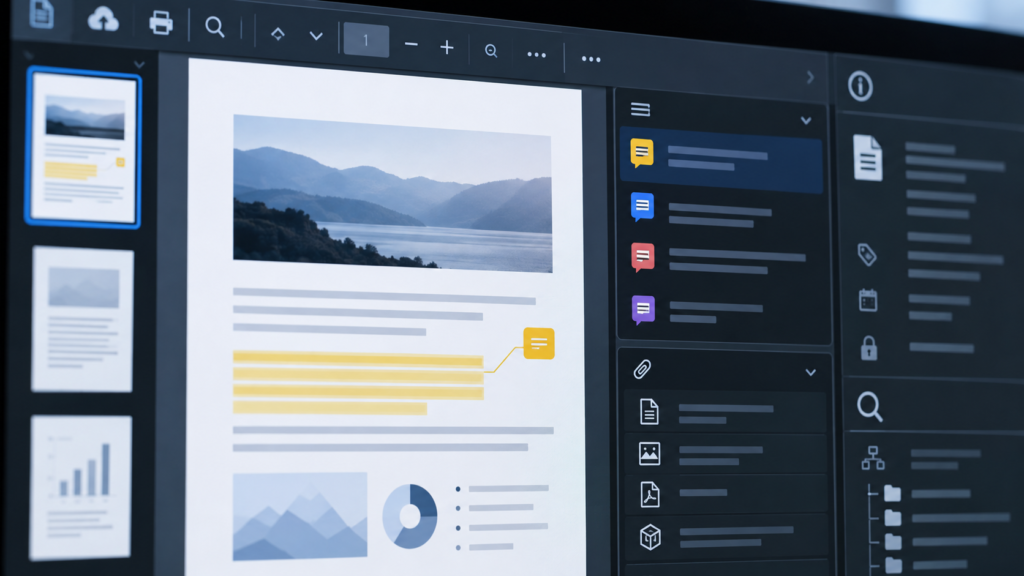
Page thumbnails are useful for checking order, but filenames and source versions still need their own review.
Think in sections before you think in pages.
A six-part packet might look like this. Your own sequence can be completely different; the point is to define it before the merge.
For larger files, use ranges rather than individual numbers: pages 1–3 cover and form, 4–5 identification, 6–12 evidence, 13–15 appendix. It becomes much easier to spot a missing section later.
Review boundaries, not every page equally.
Most ordering mistakes appear where one source ends and the next begins. Open the final page of each section and the first page that follows it.
A correct page count can still hide a wrong packet.
One duplicate page plus one missing page gives you the expected total. That is why page count alone is not enough.
Merge only after the order is clear.
PDFNexa’s Merge PDF tool combines your files in the browser. Arrange the source order first, create the merged copy, then reopen it and check section boundaries before you send it.
Adobe Acrobat — Combine files into one PDF
Adobe’s combine-files guideBackground on arranging and combining multiple files into a single PDF.