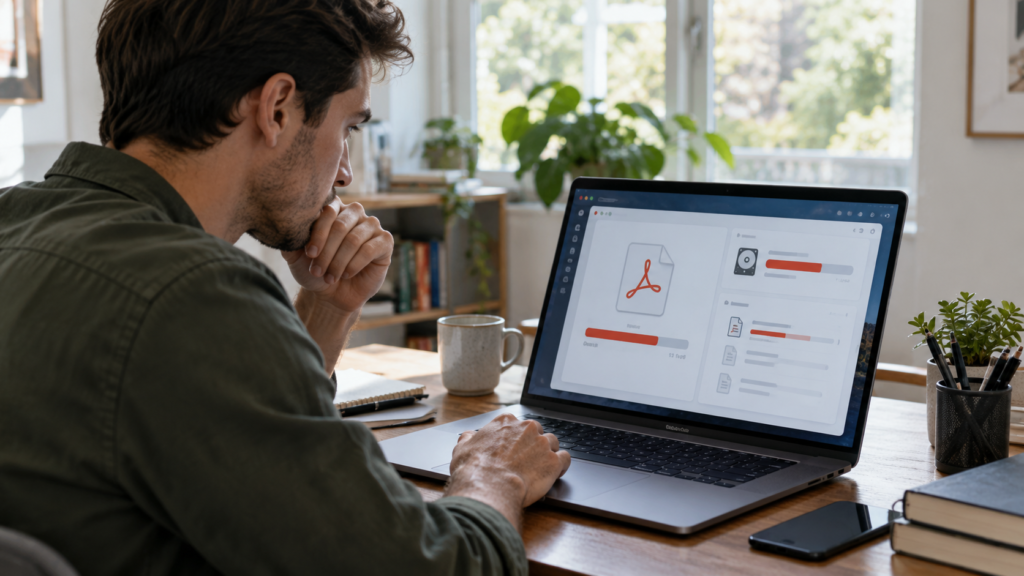
A smaller number does not always mean the file is “compressed enough.”
A PDF can drop in size and still miss your target by a long way. That usually means the file contains something that cannot be reduced much further without changing quality, removing data, or rebuilding the PDF from a better source.
Imagine a 28 MB scan that becomes 23 MB after compression. The tool may have worked perfectly. The real issue is that most of the file is still made of high-resolution page images. A design-heavy PDF can behave differently: it may be carrying embedded fonts, transparent artwork, or other objects that image compression barely touches.
So before you push the quality slider lower, find out what is actually taking the space.
Look at the content before changing the compression level.
These four checks explain most cases where a PDF barely shrinks or stays much larger than expected.
Is the PDF basically a stack of images?
Scanned documents often look like ordinary pages, but technically each page may be a full-page image. A 40-page scan can therefore mean 40 large images sitting inside one PDF.
Try selecting a word. If nothing highlights, or if the letters become visibly pixelated when you zoom in, the page may be image-based. In that case, image downsampling and image compression matter far more than text optimization.
Was it scanned at more resolution than you need?
Higher DPI preserves more detail, but it also creates more image data. That can be useful for tiny print, stamps, diagrams or archival work. For a simple document that will only be read on screen, the same setting may be unnecessary.
Do not choose a lower resolution just because the number is smaller. The useful target is the lowest setting that still keeps the important text and visual details readable.
Are the images already compressed?
Compression cannot keep discovering the same savings forever. If a PDF already contains efficiently compressed photographs, another compression pass may have very little left to remove.
That is why two 20-page PDFs can react completely differently to the same tool. One may contain lightly compressed scans and shrink dramatically. The other may already be close to its practical limit.
Has image quality become the real limit?
At some point, further reduction means discarding visible information. Small text softens. Screenshots develop artifacts. Thin lines and diagrams become harder to read.
If a portal requires 5 MB and your clean 8 MB result still looks good, the next move is not automatically “compress harder.” A different export or a cleaner source may be the safer fix.

Do not keep recompressing the same damaged copy.
Keep the original untouched. If the first result is still too large, change one thing at a time and compare both size and page quality. Recompressing an already degraded PDF can make text and images worse while producing very little additional saving.
The visible pages are not always the whole file.
When images are not the main problem, these less obvious parts of a PDF can explain the remaining size.
Embedded fonts
PDFs can embed font data so the document keeps the intended appearance on systems that do not have those fonts installed. That reliability costs space.
Font subsetting can reduce the footprint by keeping only the characters actually used. Removing fonts completely can save more, but it also increases the chance of substitutions and layout changes. For a document where appearance matters, that trade-off may not be worth it.
Attachments, comments and form data
A PDF can contain much more than what you see on the page: embedded files, comments, form values, thumbnails, multimedia and other objects may all be present.
Do not strip these just because they consume space. A completed form or a referenced attachment may be part of the document’s purpose. Remove only what you know is unnecessary.
Complex graphics and transparency
Design-heavy PDFs may contain vector artwork, transparency effects and layered objects. A short brochure can therefore be surprisingly large even with very few photographs.
Advanced optimizers can flatten or simplify some of this content, but that may change appearance or editability. If the PDF came from design software, exporting a cleaner version from the source is often safer than repeatedly processing the finished PDF.
The source file itself
Sometimes the best compression step happens before the PDF exists. A Word document, presentation or design file may contain photographs that are far larger than the final page needs.
If you still have the source, resize those images there and create a fresh PDF. That often produces a cleaner result than forcing an already finished file through more aggressive compression.
Stop chasing the smallest number.
A useful PDF is not the tiniest file you can produce. It is the smallest file that still does its job.
If you only need to meet an email or upload limit, start with the least destructive option. Make one compressed copy, open it, zoom into the smallest important text, inspect diagrams and photographs, then compare the size.
If the reduction is small, that is information. It tells you the remaining size may belong to content that needs a more deliberate decision rather than another click on “compress.”
Review resolution, color mode and scan quality before pushing compression further.
Check oversized images in the original Word, PowerPoint or similar source.
Consider a cleaner export from the original design file rather than another optimization pass.
Decide what must remain interactive before removing forms, attachments or other data.
Try a controlled compression pass.
PDFNexa’s Compress PDF workspace processes the file in your browser. Keep the original, test one copy, then inspect the downloaded result before you replace anything.
Three checks matter more than the “success” message.
Open the downloaded file
Do not trust the preview alone. Close the tool and open the actual downloaded PDF.
Inspect the fragile parts
Zoom into small text, signatures, stamps, charts, screenshots and thin lines.
Check function, not only appearance
If the file contains links or form fields, test them. Keep the untouched original until the recipient accepts the result.
Where the technical details come from.
Adobe’s current Acrobat documentation describes image downsampling and compression, font handling, transparency, removable objects and scanned-PDF quality settings—the same areas that usually explain why a PDF remains large.